Remove White Background From A Logo
A white logo background may look harmless until the file lands on a dark hero section, a colored card, or a marketplace thumbnail. A transparent export gives you far more flexibility.
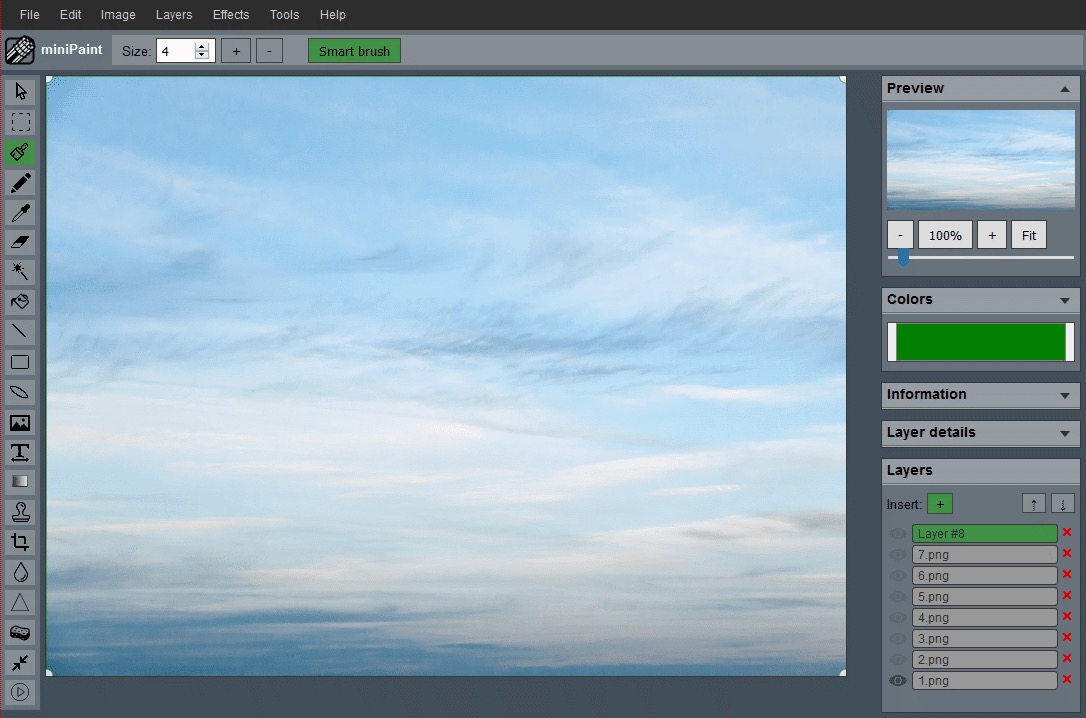
Why this usually works well for logos
Logos often use flat colors and hard edges, which makes background cleanup easier than it is for hair, fabric, or soft shadows. That is exactly the kind of image where the remove background workflow can save time.
A logo also has a clear success test: it should sit cleanly on more than one background. If a mark only looks good on white, it may fail on a dark website header, colored presentation slide, social media graphic, invoice template, or marketplace card. Removing the white box gives the logo more practical range.
This guide is most useful for raster logo files such as PNG or JPG exports. If you have the original vector file, such as an SVG, AI, or EPS file, that source is usually better because it can preserve sharper edges. If you only have a flattened image, careful background removal can still produce a much more flexible transparent PNG.
Check the logo before removing anything
Before using the eraser, zoom in and inspect the edges. A clean logo has a strong boundary between the mark and the white background. A harder case has compression blocks, gray edge pixels, soft shadows, or small text sitting close to the background. Knowing which situation you have helps you decide how careful the cleanup needs to be.
Also decide whether the white area is truly background. Some logos intentionally include white shapes inside letters, icons, or badges. If those parts are removed by accident, the logo may lose meaning. Work from the outside white area first, then inspect the inner shapes before exporting.
Recommended workflow
- Open the image in the Remove Background workflow.
- Use Magic Eraser on the white area first.
- Zoom in and clean any leftover edge pixels manually.
- Export as PNG so the transparent background stays transparent.
Start with the largest version of the logo you have. A small logo gives you fewer pixels to clean, so any rough edge becomes more visible when the file is reused. If possible, remove the background from the highest-quality export, then resize the finished transparent version for smaller placements later.
Use a contrast background while checking edges
White halos are difficult to see on a white canvas. After the first pass, preview the logo against a dark or colored surface. The remaining edge pixels will stand out much more clearly. This is the fastest way to catch a logo that looks finished in the editor but looks messy once placed on a real design.
If your logo will be used on both light and dark backgrounds, check both. A dark mark may need one export for light surfaces and a reversed or light version for dark surfaces. The background removal step solves the white box, but it does not automatically guarantee the logo has enough contrast everywhere.
The mistake to avoid
The biggest mistake is exporting as JPG after removing the white background. JPG does not preserve transparency, so the background will come back as a solid block. Use PNG for the final file whenever transparency matters.
Another mistake is over-erasing the edge. If too many pixels are removed, rounded letters or thin strokes can become jagged. If too few pixels are removed, the logo keeps a faint white outline. The right result is usually a small balance: remove the background completely while keeping the original shape of the mark intact.
Watch for edge halos
If the original file was compressed heavily, you may see faint light pixels around the logo after the first pass. Those can usually be removed with a closer zoom and a few manual cleanup strokes before export.
Halos often come from antialiasing, which is the soft edge used to make graphics look smooth. Some antialiasing is normal and useful. The problem is when those soft pixels were blended with the old white background. If the logo is going on a dark design, these blended pixels can appear as a light outline. Clean only the unwanted halo, not the entire soft edge.
When this is not enough
If the logo is blurry, antialiased against a textured background, or extremely small, the better fix may be to go back to a cleaner source file. Background removal is strongest when the original edges are already readable.
If you cannot find a cleaner source, consider using the transparent result only at smaller sizes where minor edge issues are less visible. For large hero sections, signage, print, or high-resolution brand work, rebuilding from a vector source is usually safer than stretching a cleaned raster logo beyond what it can support.
Final export checklist
- Preview the logo on white, dark, and colored backgrounds.
- Check small text and thin strokes at 100% zoom.
- Export as PNG when transparency is required.
- Keep the original file so you can make another version later.
Related guides and next steps
Transparent logo work is safest when format, edge cleanup, and background testing are handled together.