Browser-Based Photo Editing With Real Workflows.
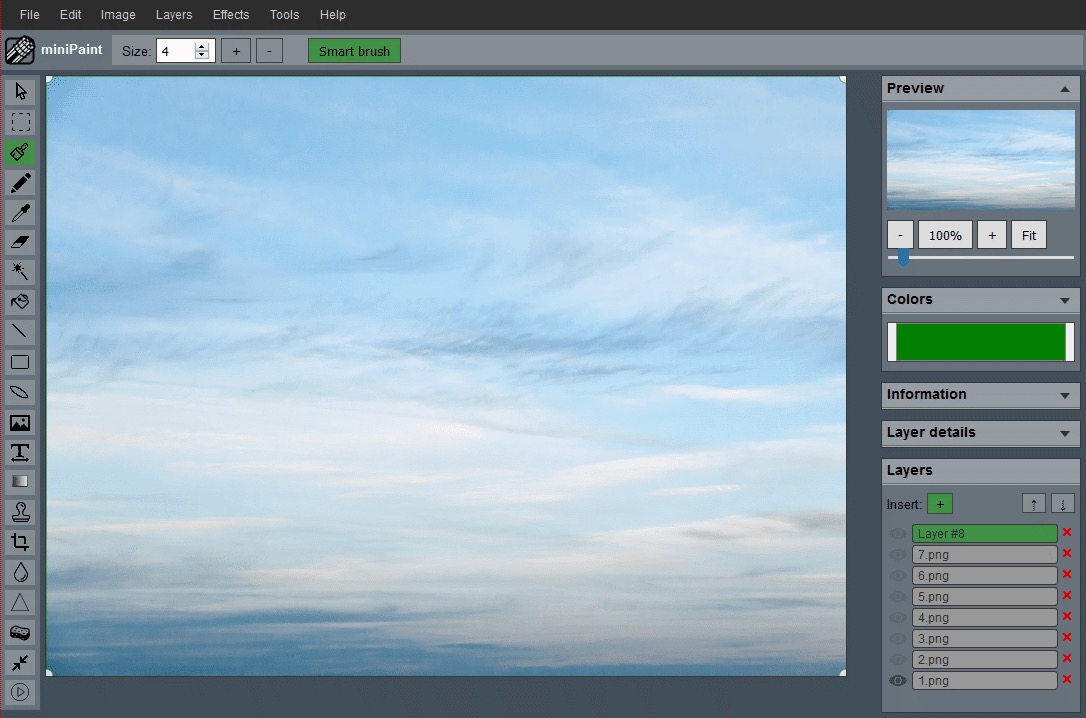
Open a full image editor in your browser, or jump straight into a guided workflow for cropping, resizing, and simple background removal. No desktop install and no account required to start.
Browser-based editing | Layers and tools included | Practical task pages
Original Guides
Practical articles built around real image-editing tasks, formats, and publishing needs.
How To Crop A Photo Without Losing Composition
Use the crop workflow to tighten framing without cutting away the part that matters most.
Read GuideResize Product Images For Online Listings
Prepare listing photos that look clean on product grids, detail pages, and zoom views.
Read GuideRemove White Background From A Logo
Turn a flat logo into a transparent PNG and avoid common halo or edge problems.
Read GuidePNG vs JPG For Transparent Images
Know when transparency matters and which format to export for the final use case.
Read GuideOptimize Images For Website Speed
Resize, crop, and choose better exports before an image slows down a page.
Read GuideHow To Make Images Square Without Stretching
Turn a landscape or portrait image into a square export without distorting the original subject.
Read GuideResize Image Without Losing Quality
Resize from a clean source, keep aspect ratio, and avoid softness from repeated compression.
Read GuideCrop Image To 16:9 For YouTube Thumbnail
Create a wide thumbnail frame without stretching the subject or hiding the message.
Read GuideMake Transparent PNG Background Online
Export transparent PNG graphics that work on light, dark, and colored backgrounds.
Read GuideReduce Image File Size Before Upload
Prepare lighter image uploads by cropping, resizing, and choosing a sensible format.
Read GuideCrop Photo For Profile Picture
Make a clean avatar crop that works in square uploads and circular previews.
Read GuideResize Image For Email Attachment
Create a smaller email copy without making important details unreadable.
Read GuideAdd Text To Image Online
Add text overlays with better placement, contrast, and export choices.
Read GuideBlur Sensitive Information In Image
Hide private details in screenshots or photos before sharing them online.
Read GuideEdit Screenshot Before Sharing
Clean up screenshots by cropping distractions, hiding private details, and adding labels only where helpful.
Read GuideMake Image Background White Online
Prepare clean white-background images for products, documents, and simple profile exports.
Read GuidePrepare Image For Website Hero Section
Crop, resize, and export hero image variants with safe space for text and buttons.
Read GuideCreate Before And After Image Comparison
Make a clear comparison graphic with matched crops, readable labels, and sensible export choices.
Read GuideWhat The Site Actually Offers
A real editor plus workflow pages that explain how to use it for common jobs.
Full Editor Workspace
Use layers, text, filters, selection tools, and image adjustments inside a browser-based editor.
Guided Task Pages
Jump into practical workflows for crop, background cleanup, and resizing instead of landing on empty keyword pages.
Local-First Editing
The editing workflow is designed to run in your browser so you can handle images without relying on a heavy desktop app.
Guided Workflows
These pages explain a real task and take you into the editor at the right starting point.
Crop Image
Open the editor with the crop tool selected, trim the frame, set exact dimensions, and export the result.
Remove Background
Start with Magic Eraser, then refine the edges manually inside the editor before exporting a transparent PNG.
Resize Image
Follow the resize workflow to change pixel dimensions or percentages for web, marketplaces, and social platforms.
Why use this Photoshop Online Free alternative?
If you are looking for a photoshop online free style editor, this site is built to be useful in two ways: it gives you a full browser-based editor and it documents how to complete common tasks with that editor.
Instead of creating thin pages that only repeat a keyword, the site focuses on explaining actual workflows people search for: crop a photo, remove a simple background, or resize an image for a target format. Each workflow page then takes you into the same editing environment where the work happens.
Built Around Practical Use
The homepage, workflow pages, and full editor are meant to work together. You can start with a guided task page when you know exactly what you need, or go straight into the editor when you want a broader workspace.
Transparent Project Scope
This is an independent browser-based editing project, not an Adobe product. The site explains what the workflows do, what the editor supports, and how local browser-based editing fits into that experience.