Add Text To Image Online
Text can turn a plain image into a thumbnail, announcement, label, meme, instruction graphic, or quick social post. The hard part is not typing the words. The hard part is making the text readable after the image is cropped, resized, shared, or viewed on a phone.
Write the shortest useful message
Image text works best when it is short. A headline, label, price, date, or warning can be understood quickly. A full paragraph usually becomes too small, especially on mobile screens. Before opening the editor, reduce the message to the words the viewer actually needs.
If the image is for a thumbnail or social preview, aim for one clear idea. If it is for an instruction graphic, break the message into separate lines or numbered steps. This gives you more control over spacing and prevents the text block from covering the subject.
Choose a placement before styling
Open the image in the PSONLINEFREE editor and look for the quietest area of the image. Text is usually easier to read on empty sky, a plain wall, a table, or a darker corner than on a face, product detail, or busy pattern. Placement should come before font experiments because no font can rescue text sitting on a chaotic background.
Keep important text away from edges if the image may be cropped by another platform. Many social feeds and previews cut off the top, bottom, or sides. Leave safe space around the text so the message survives square, vertical, and wide previews.
Use contrast, not decoration, for readability
Readability depends on contrast between the text and the image behind it. Dark text on a dark photo will disappear. Light text on a bright sky will do the same. If the image has mixed brightness, add a simple shape, soft shadow, or darker overlay behind the text instead of making the font more decorative.
Bold, simple lettering often works better than thin or ornate lettering. If the image will be viewed small, choose a heavier style and increase spacing between lines. A clean text block that feels slightly large in the editor may look just right once the image becomes a thumbnail.
Keep text on its own layer while editing
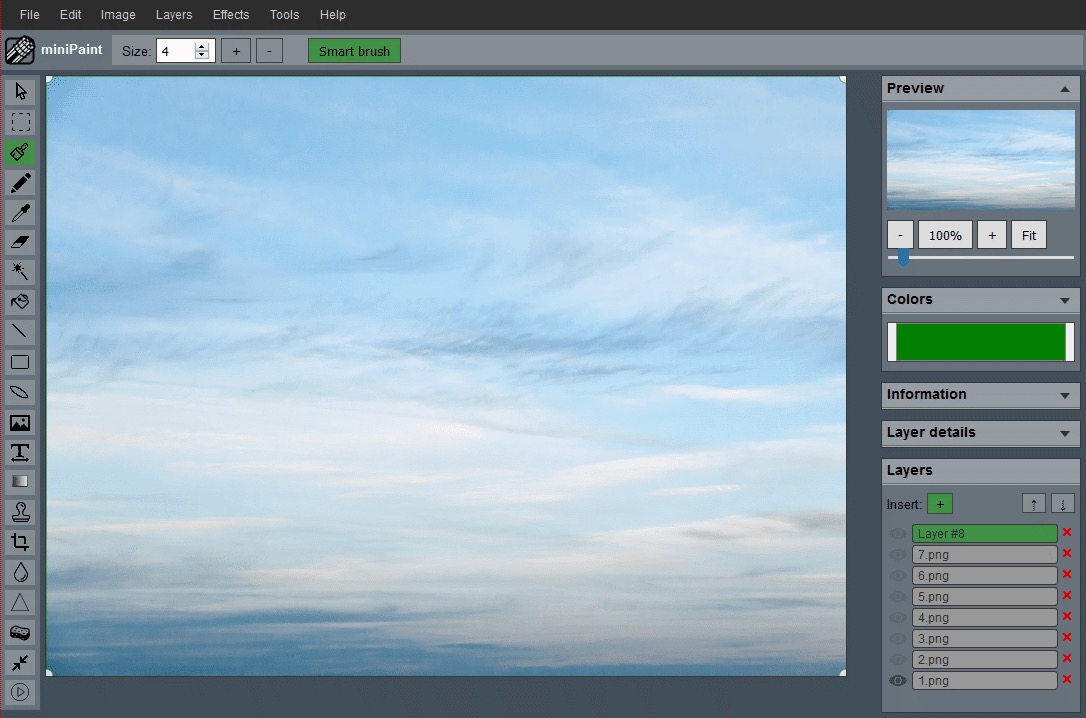
Layer-based editing lets you adjust the text without damaging the original image. Keep the text separate while you choose size, position, color, and alignment. This makes it easier to move the message if you later crop the image or notice that it overlaps an important detail.
Save an editable working version if you expect to reuse the graphic with different wording. Export a final flattened image only when the text is placed correctly. This habit is useful for product labels, recurring announcements, sale graphics, and thumbnails that share a visual style.
It also helps to keep a no-text copy of the image. If the wording changes, you can rebuild the overlay from a clean background instead of trying to hide old letters or repair the image underneath them. That matters for announcements, prices, dates, and any graphic that may be updated later.
Preview at the final size
Text that looks sharp in the editor may become too small after export. Preview the final image at the size where people will see it. If it is a website card, shrink the browser window. If it is a profile header or social thumbnail, check it at phone width. If the text cannot be read quickly, reduce the message or increase the size.
Also check the crop. A wide banner may need text on one side, while a square preview may need the message closer to the center. If one image must work in multiple layouts, keep the words short and place them inside a safe central area.
Export for the image type
For photo-based graphics, a JPG export can be efficient. For logos, screenshots, or graphics with sharp flat text, PNG may preserve edges better. If the design includes transparency, use PNG. If the file is too large after export, resize the final image instead of lowering quality until the text becomes fuzzy.
After export, reopen the final file and inspect the text edges. If the letters look blurry or show color noise, try a larger export size or a PNG version. If the file is too heavy, reduce the overall dimensions rather than making the text unreadable.
- Shorten the message before adding it to the image.
- Place text on a quiet area with enough contrast.
- Keep the text on a separate layer while editing.
- Preview the result at the size where it will be seen.
- Choose PNG or JPG based on the final image type.
A good text overlay should feel obvious, not forced. If the viewer has to zoom in or guess what the words say, simplify the message, move it to a calmer part of the image, or choose a stronger contrast treatment.
Related guides and next steps
Text overlays are usually part of a larger publishing workflow, such as thumbnails, upload graphics, or privacy-safe screenshots.