Resize Image Online
Use the full editor to resize an image by pixels or percentage. This workflow is best for preparing files for websites, social posts, listings, and print exports.
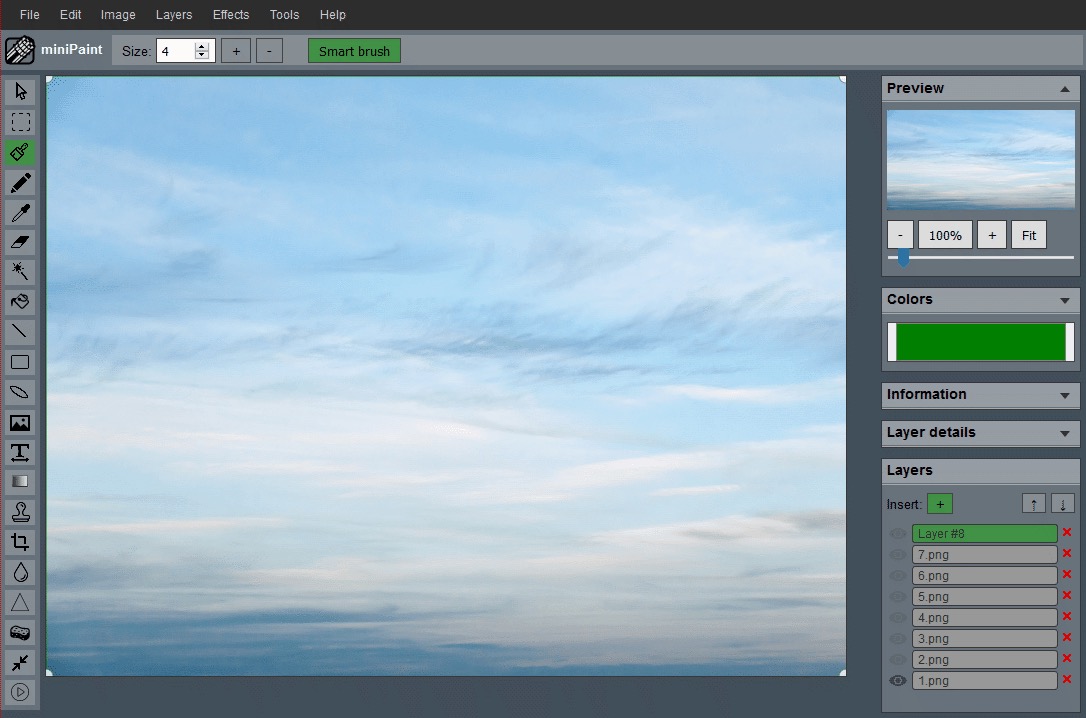
Open Editor for ResizeInside the editor, choose Image > Resize to set the new width and height.
Resize without turning the page into a dead-end landing page
Resizing is handled inside the editor because it depends on the image itself, the export target, and whether you want to preserve the aspect ratio. This page exists to guide the workflow, not to pretend there is a separate fake tool.
Open the editor, choose Image > Resize, enter the new values, and export the finished file once it looks right.
Resizing is most useful when the image already has the right frame but needs a different output size. If the subject is surrounded by extra blank space or the composition feels wrong, crop first and resize second.
How to Resize an Image
Open the File
Load your JPG, PNG, WEBP, or BMP image into the editor.
Open Resize
Choose Image > Resize from the main menu.
Enter New Values
Set the new width and height in pixels or adjust by percentage.
Export
Save the resized file once the dimensions and framing look correct.
Pick dimensions from the destination, not from the source file
Camera and phone images often start much larger than a website, marketplace, or profile page needs. The goal is not to keep every original pixel. The goal is to create an export that is large enough to look clean in its final placement without carrying unnecessary file weight.
For example, a blog image may only need a controlled web version, while a print export may need more resolution. A product thumbnail, hero banner, and presentation slide can all start from the same source image, but each one should get its own resized export.
Common Output Sizes
| Use Case | Recommended Size |
|---|---|
| Website content image | 1200 px wide |
| Instagram portrait | 1080 x 1350 |
| Etsy listing image | 2000 px wide |
| Presentation slide image | 1920 x 1080 |
Resize or Crop?
Resize when you want the whole image to stay intact but need different output dimensions. Crop when you need to change the framing or remove unused space.
If the subject is too small or poorly framed, start with Crop Image. If the framing is already correct, go straight to the resize dialog.
Resize Guides For Common Uploads
Use the resize workflow with a destination-specific guide before exporting the final copy.
Resize Without Quality Loss
Choose dimensions, aspect ratio, and export habits that keep resized images crisp.
Read Quality GuideEmail Attachments
Create smaller email copies while keeping labels, receipts, screenshots, or photos readable.
Read Email GuideProduct Listings
Prepare consistent product images for listing grids, detail pages, and upload limits.
Read Listing GuideHow to resize without making images look soft
Reducing an image is usually safer than enlarging it. When you shrink a high-quality source file, the result can stay sharp because the editor has enough detail to work with. Enlarging a small image is different: the software has to invent extra pixels, which can make edges, labels, and textures look soft.
Keep one original master file, then create smaller exports from that source. Avoid opening an already-resized image and resizing it again for each new placement. Repeated resizing can slowly reduce quality, especially when the file has already been compressed.
If the resized image is meant for a website, also review how to optimize images for website speed. If the image is for an ecommerce or marketplace listing, the product image resizing guide explains how to keep a whole product set consistent.