Crop Image To 16:9 For YouTube Thumbnail
A 16:9 crop is useful for YouTube thumbnails, video covers, website banners, and wide preview cards. The trick is to crop into the wide frame without stretching the subject or cutting away the part that makes the thumbnail understandable.
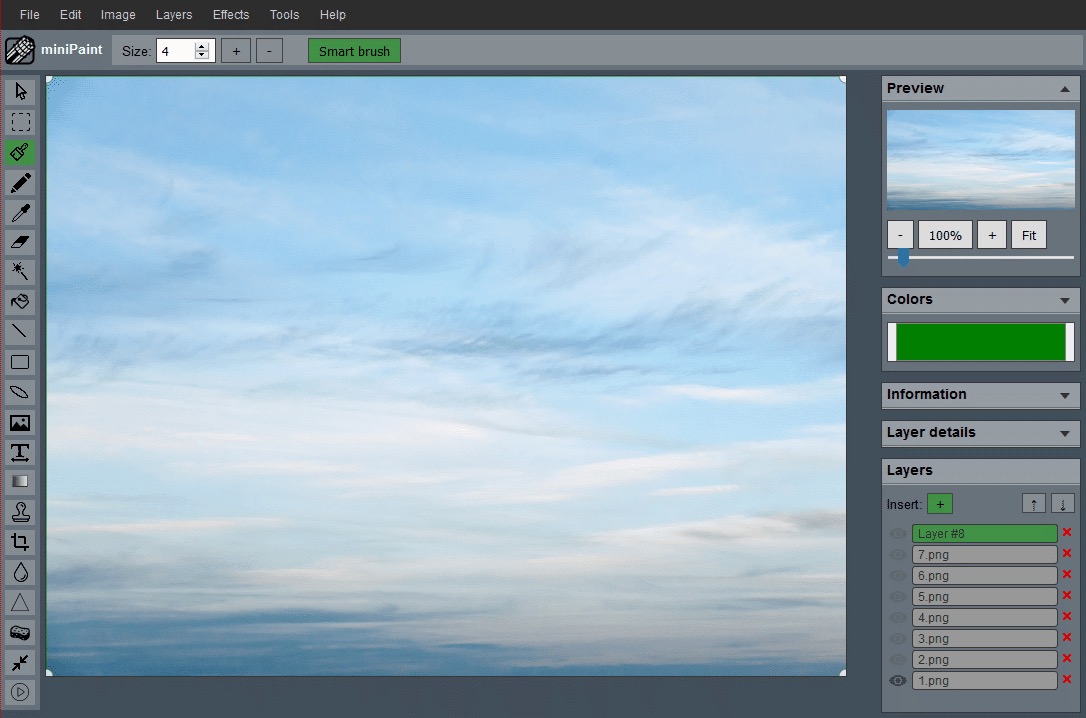
Use 16:9 as a frame, not a stretch target
A wide thumbnail should be cropped, not squeezed. If you force a tall or square image into a 16:9 rectangle by resizing width and height independently, faces, products, and text can look distorted. A proper 16:9 crop keeps the original proportions and chooses which part of the image belongs in the wide frame.
Start by opening the Crop Image workflow. Choose a wide frame and move it over the image until the main subject, important text, and supporting context are visible. Only after the crop feels right should you resize the export to the final pixel dimensions.
Decide what the thumbnail must communicate
A thumbnail often has to work at a small size. The viewer should understand the subject quickly, even before reading the title. If the image includes a face, keep the expression clear. If it includes a product, keep the shape and label readable. If it includes text, leave enough contrast and spacing so the words do not crash into the edge.
Wide crops can tempt you to include too much. A cluttered thumbnail may contain many details but communicate less. Remove background areas that do not help the message. Keep the subject large enough to recognize, but not so tight that the image feels cramped.
Leave safe space for text and overlays
If you plan to add text, arrows, badges, or a logo, reserve space for them during the crop. Do not crop so tightly that every corner is filled with important subject detail. Clean negative space gives overlays a place to sit without covering the main image.
If text will appear on the left, keep the main subject slightly to the right. If a face is looking across the frame, leave more room in the direction of the gaze. A good thumbnail crop is balanced, but it does not have to be perfectly centered.
Use contrast and simplicity to make the crop read faster
A 16:9 thumbnail often competes with many other images on the same screen. The crop should help the viewer understand the image quickly. If the background is busy, crop closer to the subject or choose a frame with cleaner negative space. If the subject blends into the background, leave room to add contrast, text, or a simple overlay later.
Avoid placing important details in every corner. A thumbnail with one strong focal point is usually easier to read than a wide frame packed with small objects. The viewer should know where to look first, then notice supporting details after that.
Crop first, resize second
Once the 16:9 composition is right, resize the cropped image to the final output size. This order gives you the cleanest result because the source detail is still available while you decide the frame. If you resize first and crop later, the final image may end up smaller or softer than expected.
The Resize Image workflow can create the final dimensions after the crop. Keep one high-quality master file so you can make a second version later if the thumbnail needs a different crop, title treatment, or platform size.
Common 16:9 crop mistakes
- Stretching the image instead of cropping into a wide frame.
- Putting the subject too close to the edge.
- Leaving no space for text or overlays.
- Keeping too much background because the wide frame has extra room.
- Exporting from a small source image and then enlarging aggressively.
Final preview test
After exporting, view the image small. A thumbnail that only works at full size may not work in a feed, video grid, or mobile preview. Check whether the subject is still readable, the frame feels intentional, and the crop does not cut off details that explain the image.
If you are making several thumbnails for the same channel or project, compare them together. Consistent subject size, margin, and text placement can make the whole set look more professional. The exact image may change, but the visual rules should feel repeatable.
If the image becomes hard to understand when small, return to the crop. Make the subject clearer, simplify the background, or create a different version with less visual noise. For a broader framing workflow, read how to crop a photo without losing composition.
Related guides and next steps
Thumbnail work often needs both framing and readable overlay choices, especially when the final image appears small.