Blur Sensitive Information In Image
Screenshots, receipts, forms, and photos often contain more private information than expected. Before sharing an image, take a moment to find names, addresses, account numbers, faces, locations, and other details that should not be visible to everyone.
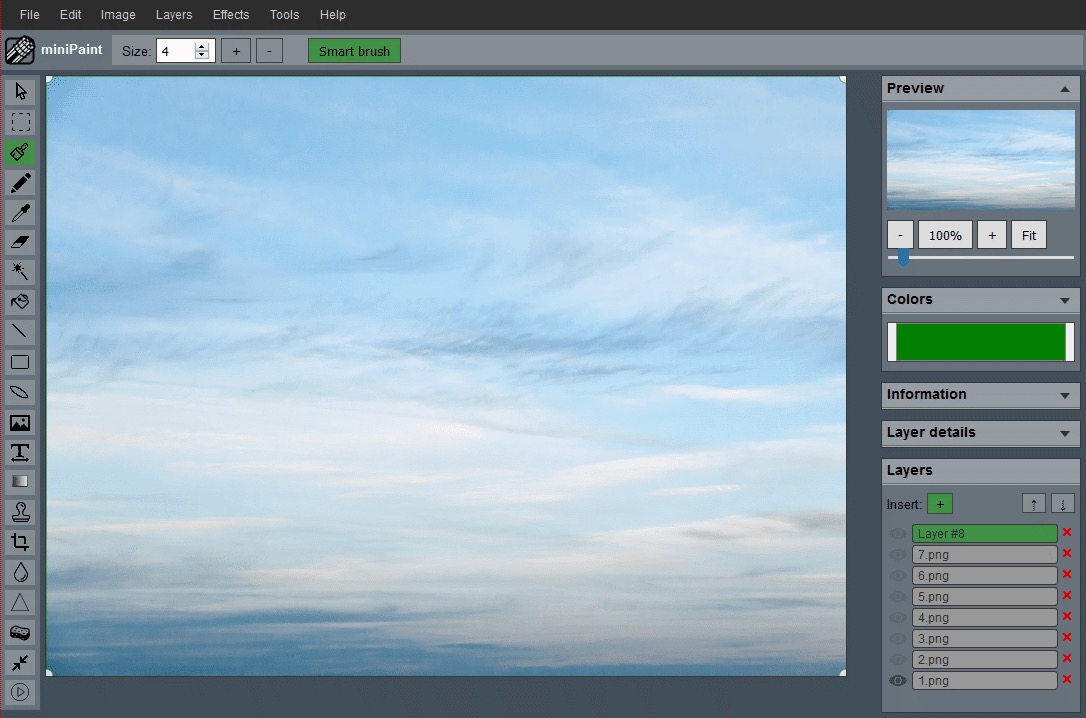
First decide whether blur is enough
Blur is useful for quick sharing, but it is not always the safest way to hide information. If the image contains highly sensitive material, cropping the area out or covering it with a solid block is usually safer than a light blur. Weak blur can sometimes leave shapes, short words, or numbers partly recognizable.
For casual screenshots, blur or mosaic can be enough to hide a username, order number, or background face. For IDs, financial details, medical information, private addresses, or confidential work material, choose a stronger removal method and avoid sharing the original file publicly.
Scan the whole image before editing
Sensitive details are often not in the obvious place. A screenshot may show browser tabs, bookmarks, profile icons, email previews, customer names, or map locations. A receipt may include store numbers, partial card numbers, order IDs, or loyalty information. A photo may include house numbers, license plates, children, or reflections.
Zoom out first and make a quick list of what needs to be hidden. Then zoom in and check the corners, headers, sidebars, and background. This prevents the common mistake of blurring one line while leaving the same information visible somewhere else.
Crop out information that is not needed
Cropping is often the cleanest privacy edit. If the private detail is outside the part of the image you want to share, remove that area entirely with the Crop Image workflow. Cropping also makes the image easier to understand because the viewer sees only the relevant section.
For example, a support screenshot may only need the error message, not the full desktop. A product photo may only need the product, not the shipping label in the corner. Crop first when the sensitive area is not part of the explanation.
Use strong blur, mosaic, or a solid cover
When the private information sits inside the area you need to show, use a stronger hiding method. The editor includes blur and mosaic-style effects, and a solid shape can also work well for text or numbers. The choice depends on the risk. A soft blur may be fine for a background face; a solid cover is better for account information.
If you use blur, make it strong enough that the original characters cannot be guessed. If you use mosaic, choose blocks large enough to destroy the detail, not just decorate it. If you use a solid cover, make sure it fully covers the text, including descenders, punctuation, and shadows around the characters.
Keep an unshared original and export a safe copy
Do not overwrite the original if you may need it later. Save a separate edited copy for sharing. This gives you a clean source for your own records and a privacy-safe version for email, social posts, support requests, or documentation.
After export, open the edited copy and inspect it at full size. Do not rely only on the preview while editing. A blur that looks strong when zoomed out may reveal more detail when someone opens the image on a larger screen.
Check repeated details and file names
Private information can appear more than once. A name may show in a header and again in a sidebar. An email address may appear in the account menu and inside the message body. A map screenshot may show both a pin and a street label. Search the image visually for repeated details before you decide the edit is finished.
The file name can also reveal context. If the exported image has a name that includes a customer, patient, address, order number, or private project, rename the sharing copy before attaching or uploading it. The visible pixels are not the only part of a file that can leak information in everyday sharing workflows.
Privacy edit checklist
- Scan the whole image, including corners, headers, tabs, and reflections.
- Crop out private areas when they are not needed.
- Use strong blur, mosaic, or a solid cover for information that must stay inside the frame.
- Export a separate sharing copy instead of overwriting the original.
- Open the final file and check whether hidden details are still readable.
If you are unsure whether a detail is safe to show, hide it. A privacy edit should reduce risk, not create a puzzle where someone can recover the information by zooming in, changing contrast, or comparing repeated patterns.
Related guides and next steps
Privacy edits often pair with cropping and resizing because sharing copies should be focused, smaller, and separate from the original.