Edit Screenshot Before Sharing
A screenshot is rarely ready to send the moment it is captured. It may include private details, unrelated tabs, extra desktop space, or tiny text that becomes unreadable after upload. A short cleanup pass makes the image safer and easier for someone else to understand.
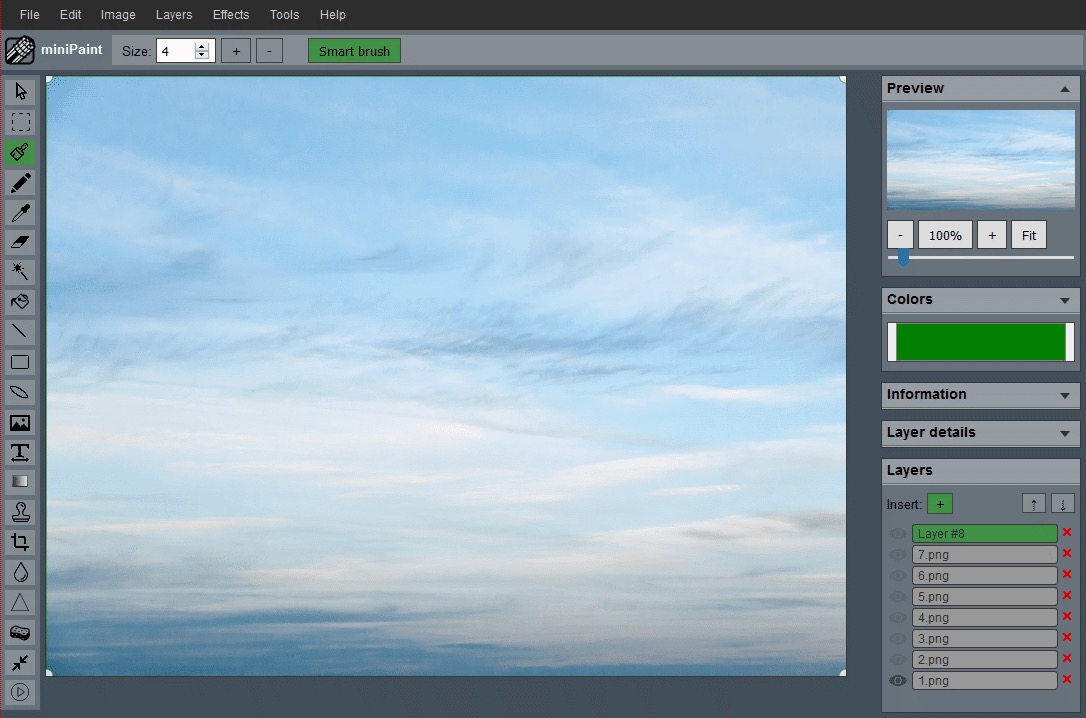
Start with the reason you are sharing it
Before editing, decide what the screenshot is meant to prove or explain. A support request may need an error message and the surrounding button. A design note may need a full section of a page. A receipt or account screenshot may need only one line of information. Knowing the purpose keeps the edit focused.
This first decision also prevents oversharing. Screenshots often capture more than the viewer needs: browser tabs, bookmarks, file names, email previews, usernames, addresses, internal project names, and notification badges. If the detail does not help the viewer solve the problem, remove or hide it.
Crop to the useful area first
Cropping is the cleanest screenshot edit because it removes unnecessary pixels entirely. Use the Crop Image workflow to keep the message, form field, chart, button, or error state while cutting away the rest of the screen. A cropped screenshot is faster to read and usually safer to share.
Leave enough context so the viewer understands what they are seeing. Cropping too tightly can make a screenshot confusing. For example, an error message may need the field label above it, and a dashboard number may need the chart title or date range. Keep the smallest frame that still explains the situation.
Hide private details before adding notes
After cropping, scan the remaining image for anything that should not be public. Look at headers, sidebars, account menus, browser chrome, chat previews, map labels, order IDs, and partial payment details. Private information can appear in several places at once.
Use a strong blur, mosaic, or solid cover for details that must stay inside the screenshot. If the information is not needed, crop it out instead. The guide on blurring sensitive information explains when blur is enough and when a solid cover is safer.
Add labels only when they reduce confusion
A screenshot does not need arrows and text everywhere. Labels are useful when the viewer might miss the important area, when multiple steps are visible, or when you need to point out a before-and-after state. Keep each label short and place it near the detail it explains.
If you add text, keep it readable at the final sharing size. A label that looks neat in the editor may become tiny inside a chat app or support ticket. The text overlay guide covers contrast, placement, and safe spacing for image text.
Resize for the place where it will be viewed
Screenshots can be large even when the visible content is simple. If you are sending one by email, attaching it to a form, or uploading it to a support portal, create a smaller sharing copy instead of sending the full screen capture. Resize after the crop and privacy edits are done so the final image stays focused.
Do not make the screenshot so small that interface text becomes unreadable. Preview the export at the size the recipient will likely see. If the text looks soft, resize less aggressively or crop tighter around the relevant area. For email-specific decisions, use the resize image for email attachment guide.
Export a separate sharing copy
Keep the original screenshot if you may need it later, but share an edited copy. This lets you preserve a record for yourself while sending a version that is smaller, clearer, and safer. Give the edited file a neutral name that does not reveal a customer, project, address, or private account.
Before sending, open the exported copy and inspect it one more time. Check whether hidden information is still readable, whether labels cover important details, and whether the crop still includes enough context. The final copy is what other people will keep, forward, or upload, so the last safety pass matters.
Screenshot sharing checklist
- Decide what the screenshot needs to explain.
- Crop away unrelated screen areas first.
- Hide private details that remain inside the frame.
- Add short labels only where they improve clarity.
- Resize and export a separate sharing copy.
A good edited screenshot should feel boring in the best way: no accidental private data, no mystery about what matters, and no extra pixels that make the viewer hunt for the point.
Related guides and next steps
Screenshot cleanup usually combines privacy, cropping, labels, and a smaller export.