How To Make Images Square Without Stretching
Turning a landscape or portrait photo into a square is not a resize problem by itself. It is mostly a crop problem. Stretching happens when the original proportions are forced into a new frame instead of being reframed properly.
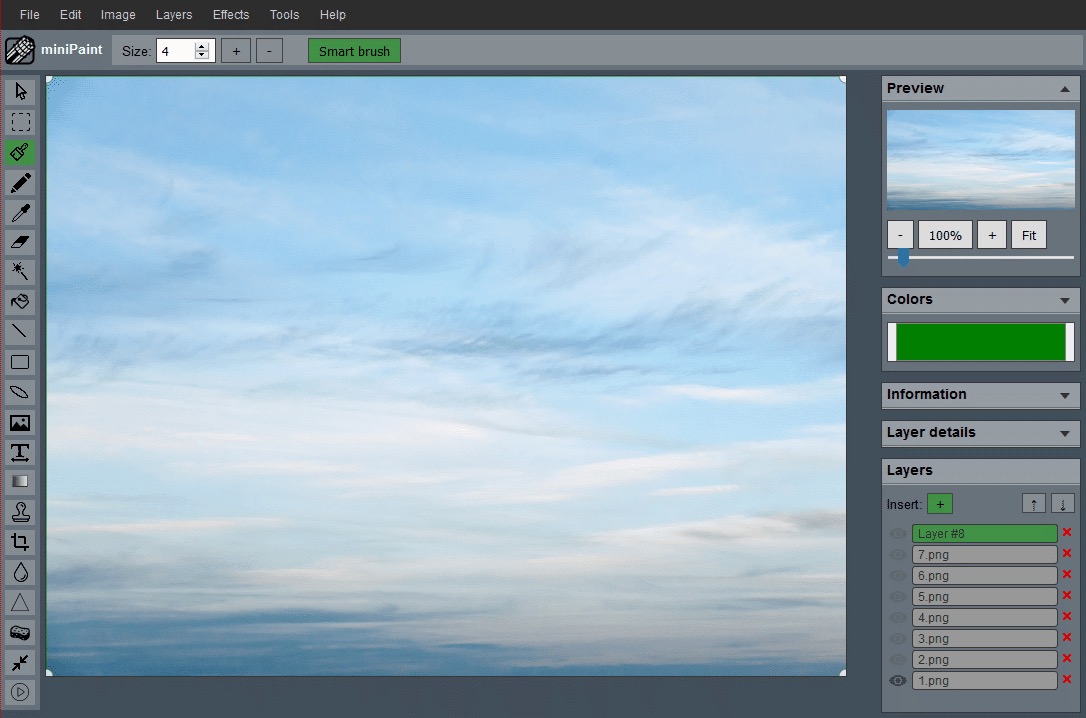
Crop to square first
The cleanest square conversion starts by cropping the image to a 1:1 frame. That preserves the subject's proportions. Stretching only appears when width and height are forced without respecting the original relationship.
This is the key difference between cropping and resizing. Cropping changes what part of the image is visible. Resizing changes how many pixels the final image uses. If you try to turn a wide photo into a square only by forcing width and height, circles can become ovals, faces can look wider, and products can look distorted. A 1:1 crop avoids that problem.
Use the Crop Image workflow first and choose a square frame. Move the square over the photo until the subject feels balanced. Only after the square composition is right should you resize the result for a profile image, product grid, social post, or thumbnail.
Decide what must stay inside the square
A square crop removes space from one direction more than another. In a landscape photo, you usually lose space from the left and right. In a portrait photo, you usually lose space from the top and bottom. Before cropping, identify the parts that cannot be cut: faces, hands, product edges, packaging labels, shadows, text, or important background context.
If the subject is tall or wide, give priority to the part that communicates the image fastest. For a person, that may be the face and shoulders. For a product, it may be the complete outline and label. For food, it may be the most recognizable texture and shape. The square crop should simplify the image without making it confusing.
Center is not always the answer
A square crop often works best when the subject is slightly off-center rather than perfectly centered. Watch where the eye goes and where the important edges begin. A square can feel balanced without being mathematically symmetrical.
For example, if a person is looking to one side, leave a little more room in that direction. If a product handle points outward, leave enough space so it does not feel clipped. If text will be added later, keep some clean background area for the message. A square frame can still have movement, direction, and negative space.
A useful check is to zoom out until the image looks like a small thumbnail. If the subject is still easy to understand, the crop is doing its job. If the image becomes visually confusing, shift the square or return to a wider source image.
Resize after the square frame is right
Once the square composition is correct, resize the square image to the final output you need. That second step controls file dimensions without changing the proportions of the subject.
This two-step workflow is safer than resizing first because it keeps the source detail available while you decide the frame. After the square crop is final, open the Resize Image workflow to create the exact output dimensions. A profile avatar, ecommerce thumbnail, and social post may all be square, but they may not need the same pixel size.
Common square image use cases
Square images are common because they fit clean grids. They are useful for product cards, user avatars, team photos, social profile images, album covers, app thumbnails, and quick comparison layouts. A consistent square treatment can make a page feel calmer because every item takes up the same amount of visual space.
The risk is that square formats can hide context. A tall dress, a wide sofa, a group photo, or a landscape scene may lose important information if forced into a square. In those cases, the best result may be a square thumbnail for the grid plus a wider or taller detail image on the full page.
If the subject does not fit
If a square crop removes too much context, the issue is not always the crop tool. Sometimes the image simply needs extra background or a different source frame. In those cases, forcing a square may not be the best visual choice.
You have a few options. Choose a different source image with more room around the subject. Use a wider frame if the destination allows it. Create a square thumbnail that focuses on the most important detail, then link to a full image elsewhere. Or add a neutral canvas around the image in a separate design workflow if the full subject must remain visible.
Final check before exporting
- Confirm the subject is not stretched or squeezed.
- Check that important edges are not cut off accidentally.
- Preview the crop at thumbnail size.
- Resize only after the square composition is approved.
If the square image will be used with other square images, compare a few of them together. Matching size is only part of consistency. Similar padding, subject scale, and background treatment often matter just as much.
Related guides and next steps
Square exports are common for avatars, listing photos, and thumbnails, but each use case needs a slightly different crop.