Resize Product Images For Online Listings
A good listing image needs enough detail to look credible, but not so much weight that every export becomes unnecessarily large. Resizing is how you balance clarity, consistency, and speed.
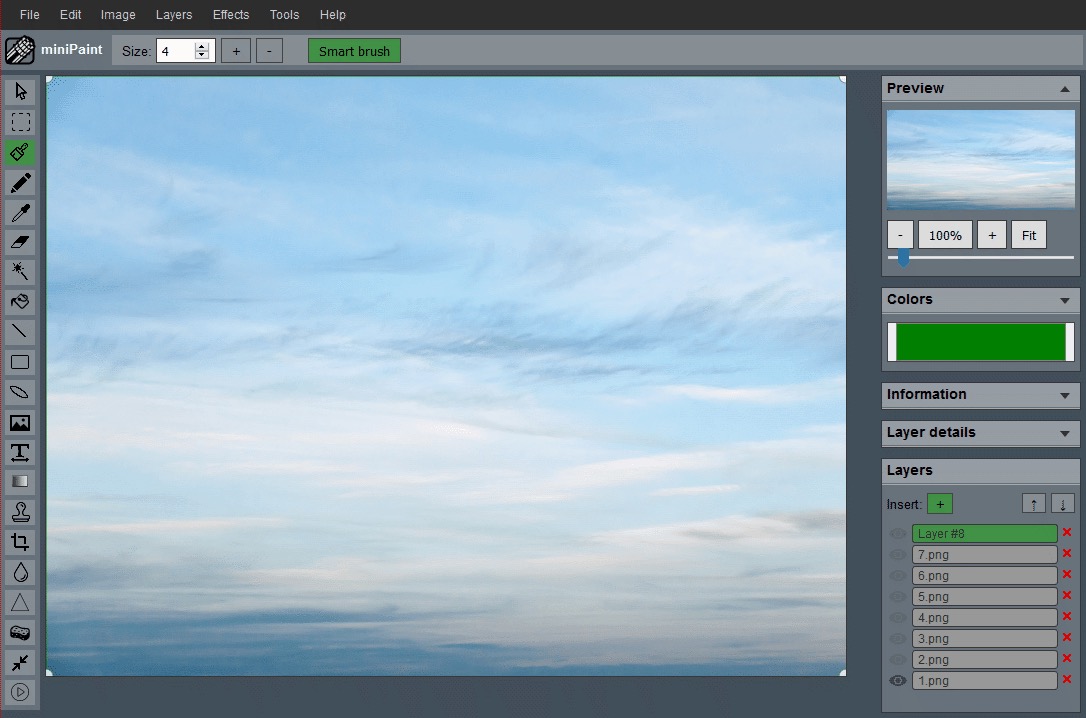
Consistency matters more than maximum size
Large images do not automatically create better listings. What usually helps more is keeping the same framing, similar padding, and a repeatable output size across a product set. That makes the grid feel cleaner and gives buyers fewer visual surprises.
Think of a product listing page as a shelf. If one item fills the full frame, another floats in a large white box, and another is cropped too close, shoppers have to work harder to scan the set. Consistent image dimensions make the page feel more trustworthy because every item is being presented with the same visual rules.
That consistency is especially important for marketplaces, catalogs, menus, print-on-demand mockups, and small business stores. The goal is not to make every product the same physical size. The goal is to make the image treatment feel intentional, with similar margins, backgrounds, and final export dimensions.
Choose the listing role before choosing dimensions
A main product image, thumbnail, variant image, and zoom detail do not need the same output. The main image should be large enough to show the complete product clearly. A thumbnail needs faster recognition at a small size. A detail image can crop closer to show texture, stitching, labels, buttons, or packaging.
If a platform gives you recommended dimensions, use them as the final target. If it does not, choose a practical standard and apply it across the set. Square images are convenient for product grids, while portrait or landscape exports may work better for products whose shape is naturally tall or wide. What matters most is choosing once and staying consistent.
Use this order for cleaner results
- Crop the image first if the framing is inconsistent or there is too much empty space.
- Resize only after the composition looks correct.
- Export a version that is large enough for detail but not much larger than the listing needs.
This order prevents two common quality problems. Cropping first removes empty pixels while the source image still has maximum detail. Resizing second creates the delivery file without repeatedly compressing or shrinking the image. If you need a square grid, start with the Crop Image workflow, then finish with the Resize Image workflow.
Keep backgrounds and padding predictable
Product images often look inconsistent because the object is not placed the same way inside the frame. Leave enough padding so the product does not touch the edge, but avoid so much padding that the item looks tiny. For most listing sets, the product should feel comfortably framed and easy to recognize before a buyer opens the full detail page.
If you are preparing a set of related products, resize a few examples first and compare them side by side. This quick preview reveals whether one product needs a wider crop, whether a tall item needs a different canvas, or whether the whole set should use a slightly larger final dimension.
Why oversized files are a hidden problem
Oversized product images slow down pages, make uploads heavier, and often do not improve the buying experience once the storefront shrinks them. A controlled resize keeps the product sharp while reducing unnecessary payload.
A common mistake is uploading the original camera file directly. That file may contain far more pixels than the listing will ever display. The storefront still has to store, process, or serve that larger asset, and shoppers may wait longer on slower connections. A clean resized version is easier to handle and usually looks just as good in the actual listing.
What to watch for after resizing
Check whether small text on packaging is still legible, whether edges look soft, and whether the product still sits comfortably inside the frame. If the image feels cramped, you may need to return to the crop step rather than simply enlarge it again.
Also check color and contrast after export. A product on a pure white background can blend into a white page if the edges are faint. A transparent or removed background may look great on one surface and weak on another. Preview the export in the place where buyers will actually see it whenever possible.
A practical rule
Keep one high-resolution master, then export listing-specific versions from that source. That gives you room to create variants later without repeatedly resizing a file that has already been reduced once.
Name the exported files clearly, such as product-name-main, product-name-thumbnail, and product-name-detail. Simple file naming makes it easier to update a listing later without guessing which version was meant for which placement. It also reduces the chance of uploading a huge source file by mistake.
Before you publish the listing
- Open the final image at the same size buyers will see first.
- Check that the product is recognizable without zooming.
- Compare the image against two or three other products in the same set.
- Keep the original source file in case you need a new export later.
Related guides and next steps
Product images usually need a whole export set: a main image, a thumbnail, and a lighter upload version that still preserves detail.