How To Crop A Photo Without Losing Composition
Cropping should make a photo clearer, not weaker. The goal is to remove what distracts while keeping the visual balance, subject emphasis, and breathing room that made the image useful in the first place.
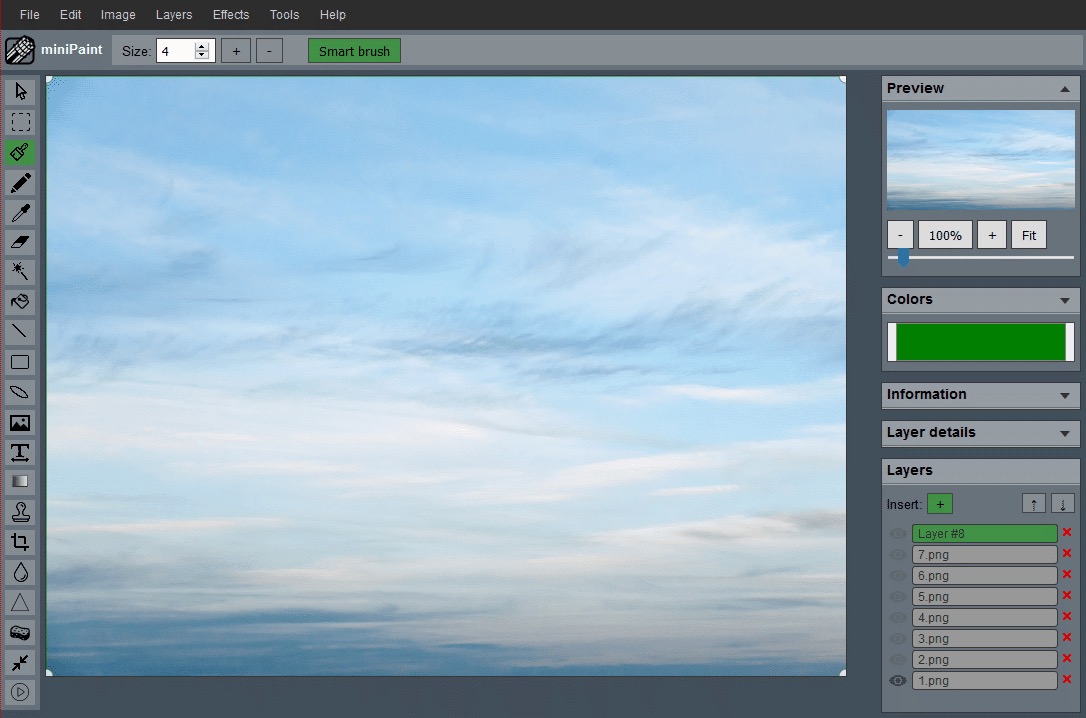
Start by deciding what the image needs to say
Before moving any crop handles, decide what the photo is for. A product image usually needs clean framing and consistency. A portrait may need more breathing room around the face. A banner might need negative space for text. When the purpose is clear, the crop becomes a design decision instead of a guess.
A helpful way to begin is to write the purpose in one short sentence: "show the face," "make the product clearer," "prepare a wide blog header," or "remove the distracting wall on the left." That sentence keeps the crop focused. Without it, it is easy to keep trimming until the subject is bigger but the image has lost the space, direction, or context that made it feel natural.
Read the subject before you trim the frame
Look for the strongest part of the photo before choosing a ratio. In portraits, the eyes usually carry the image. In food photos, the most recognizable texture or shape may matter more than the plate. In product photos, the buyer needs to understand the object quickly, so important edges, labels, handles, or scale cues should remain visible.
Also check the direction of movement. If a person is looking to the right, or a car is pointing toward the left, leave a little more room in that direction. This gives the subject somewhere to "move" inside the frame. Cropping equally on both sides can be technically neat, but it is not always visually balanced.
A simple crop workflow
Use this sequence when you open the Crop Image workflow:
- Remove obvious empty space first.
- Check whether the subject is too close to the edge after the first trim.
- Adjust the frame so the eye lands on the subject quickly.
- Only then switch to an exact output ratio if the destination requires one.
After the first crop, pause and compare the image against the original. The first version often reveals whether the crop is solving the real problem or just making the subject larger. If the crop improves focus but makes the image feel cramped, widen it slightly before moving on. A small amount of breathing room is often what separates a professional crop from a rushed one.
Use aspect ratios after the composition is clear
Exact ratios are useful, but they should usually come after the visual decision. A square crop is helpful for avatars, product grids, and social previews. A 16:9 crop works well for wide banners and video thumbnails. A vertical crop may be better for mobile-first stories or catalog cards. The mistake is choosing the ratio first and then forcing the photo to obey it even when the subject no longer fits well.
If a required ratio cuts into something important, try shifting the crop window before shrinking it. For example, a square product thumbnail does not need the product perfectly centered if a slight shift keeps a label readable. The final crop should satisfy the output format while still respecting what makes the image useful.
What usually goes wrong
The most common mistake is cropping too aggressively just because the crop box is available. A tight crop can remove context, make the image feel cramped, or cut off edges that help the subject feel grounded. Another common mistake is forcing a square or banner ratio before deciding what parts of the image matter most.
Watch especially for accidental cuts through hands, hair, packaging corners, furniture legs, shadows, or reflections. These small details can make an image look unfinished even if the main subject is still visible. Background space is not always waste; sometimes it creates contrast, gives text a place to sit, or makes the subject feel less crowded.
When to crop before resizing
Crop first when the composition is wrong. Resize first only when the framing already works and you simply need lighter or smaller output dimensions. In many real projects, the right order is crop, then resize, then export.
This order matters because resizing locks in a new pixel count. If you resize first and then crop heavily, the final file may end up smaller or softer than expected. Cropping first removes unwanted pixels while the source still has as much detail as possible. Then the Resize Image workflow can create the final version for a website, listing, profile, or social post.
A quick decision test
After cropping, zoom out and ask one question: does the subject feel stronger or merely larger? If it only feels larger, you may have trimmed too much. If it feels clearer, more deliberate, and easier to read, the crop is probably helping.
Another good test is the thumbnail test. View the image small, similar to how it might appear in a gallery, search result, or mobile feed. If the subject is still clear and the frame does not feel awkward, the crop is likely working. If the image becomes hard to understand at a small size, revisit the crop before exporting.
Recommended next step
Keep a copy of the original and export the cropped version as a separate file. That gives you freedom to make a second crop for another placement later. A homepage banner, product card, and square thumbnail may all start from the same photo, but each one deserves its own crop.
Related guides and next steps
If this crop is for a specific destination, continue with a more focused workflow before exporting the final file.