Optimize Images For Website Speed
Website images get heavy for two reasons: unnecessary pixels and unnecessary file choices. A lighter export starts before upload, not after a page becomes slow.
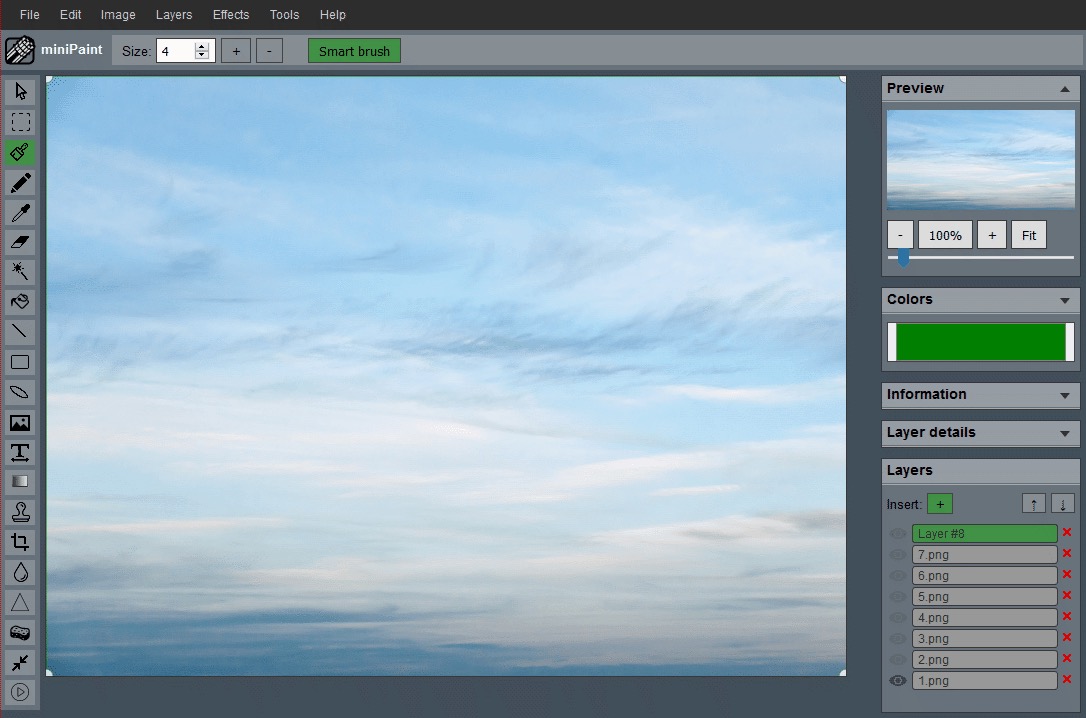
Cut what the page will never show
Start by cropping away empty margins or extra background that adds weight without improving the message. A tighter frame often removes more unnecessary pixels than people expect.
This is the simplest speed win because it removes information before compression ever begins. A hero image with extra ceiling, floor, or side margins may contain thousands of pixels that the visitor does not need. A product photo with a large empty border can look smaller on the page while still carrying the weight of the unused space.
Use the Crop Image workflow when the image includes blank areas, distracting surroundings, or a subject that is too small inside the frame. The crop should improve the composition first and reduce pixels second. If the crop makes the image less clear, the speed gain is not worth it.
Resize for the display role
A homepage thumbnail, blog inline image, and fullscreen hero do not need the same export. Create a version that matches the role. Sending a huge image into a small placement is one of the most common speed mistakes.
Start by asking how large the image will actually appear. A small card image may only need a compact export. A wide hero image needs more width, but it still does not need to be the full camera original. A logo, icon, or transparent cutout may need crisp edges, but not an oversized canvas.
The Resize Image workflow is useful after the crop is final. Resize once from the best available source, then export the version meant for the website. Avoid resizing the same already-compressed image over and over, because each pass can reduce quality or create softness.
Create separate exports for separate placements
One image often needs more than one web version. A blog thumbnail, article header, social preview, and product detail image may all start from the same source, but each placement has a different job. Trying to use one large file everywhere usually makes small placements heavier than necessary.
A practical setup is to keep a master image, then create named variants such as hero, card, thumbnail, and detail. This keeps the workflow organized and makes future updates easier. When a page changes, you can regenerate the right variant instead of guessing which old file was used.
Choose the final format deliberately
Use PNG when transparency matters. Use a lighter photo-friendly format when transparency does not matter. The right format depends on what the page actually needs from the image.
Format choice is not only a technical detail. It affects whether the image still works in the design. A transparent logo should not be saved as JPG just to make it smaller, because the background will turn into a solid rectangle. A full photo with no transparency may not need PNG. The PNG vs JPG guide covers the transparency decision in detail.
For speed, the best format is the one that preserves the visual requirement with the least unnecessary weight. If transparency is required, protect transparency first. If the image is a regular photo, prioritize a format and size that keep it clear at the intended display dimensions.
Do not optimize away readability
Smaller is not always better. If an image includes text, labels, interface details, product packaging, or small visual cues, reduce carefully. A file that loads quickly but cannot be read is not serving the page. Preview important images at the exact size visitors will see, especially on mobile.
If details become soft after resizing, go back to the source image and export a slightly larger version. If the image still feels heavy, crop distracting space or create a different variant rather than repeatedly compressing the same file.
A practical checklist before export
- Crop the frame if there is unused space.
- Resize to the intended display role.
- Choose the correct format for transparency or photography.
- Preview the image at its real placement size.
Add one more review step before publishing: compare the final image against the page around it. A background photo may need darker contrast for text. A product cutout may need more padding. A thumbnail may need a simpler crop so the subject remains recognizable. Speed work should improve the page experience, not just reduce a number.
Keep a master, publish variants
Hold on to a higher-quality source file and generate web-ready versions from that. That prevents you from repeatedly editing an already reduced export.
This is especially important if the same image may later be used for a different campaign, page layout, ad creative, or product listing. The master keeps your options open. The web variants keep the live site lighter.
A simple workflow for most website images
- Start from the cleanest source image available.
- Crop to remove distractions and unused space.
- Resize for the real placement, not the largest possible screen.
- Choose PNG only when transparency or crisp graphics require it.
- Export a named web version and keep the master untouched.
Related guides and next steps
Website image speed usually improves most when crop, resize, and format decisions are made before upload.