Prepare Image For Website Hero Section
A hero image has a harder job than a normal page image. It needs to look strong on desktop, survive mobile cropping, leave room for text or buttons, and load quickly enough that the first screen does not feel heavy.
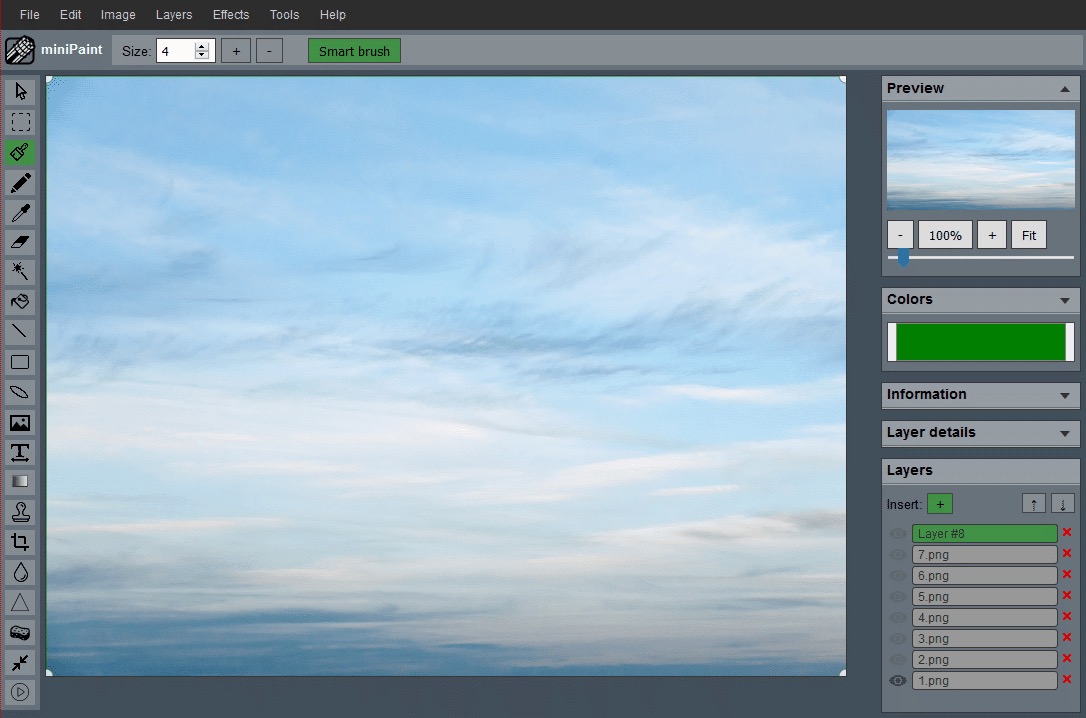
Define the hero's job before editing
A hero image may introduce a product, set the mood for a landing page, support a headline, or make a brand feel more credible. The edit should follow that job. A product hero usually needs a clear subject. A service page may need a calmer image with space for copy. A blog or portfolio hero may need more atmosphere than detail.
Pick the most important part of the image before cropping. That focal point might be a face, product, workspace, texture, interface, or object. Every crop decision should protect that focal point instead of simply filling a wide rectangle.
Leave a safe area for text and buttons
Many hero images sit behind headlines, subheadings, buttons, or navigation. Busy detail behind text makes a page feel less readable. If the design uses overlaid text, choose an image with a calm area or crop so the calm area lands behind the copy.
You can also darken, soften, or slightly simplify the area behind the text, but do not rely on effects to fix a composition that fights the message. If the text belongs on the left, protect open space on the left. If the layout centers text, keep the middle quieter and push detail toward the edges.
Crop for more than one screen shape
A desktop hero is usually wide. A mobile hero is often narrower and taller. A single image can work across both if the subject is placed carefully, but many sources need separate crops. Use the Crop Image workflow to create a wide version and then check whether a mobile crop still keeps the important subject visible.
Avoid placing critical details at the far edges unless the layout is designed for that. Side edges are often the first parts to disappear on smaller screens. Faces, product names, labels, and important visual cues should sit closer to a safe central region.
Create variants instead of one giant file
A hero image is often the largest image on a page, so sending the full camera original is rarely a good idea. Keep one master source, then create web-ready variants for the actual layout. A desktop hero, mobile hero, card preview, and social preview may all need different crops or dimensions.
Use the Resize Image workflow after the crop is final. Resize once from a clean source and name the exports clearly, such as hero-wide, hero-mobile, and hero-card. This keeps the live page lighter while preserving a good source for future edits.
Watch contrast and color after resizing
A hero image can look beautiful by itself but weak underneath actual page content. Test it with the headline, button color, and surrounding background. If the subject competes with the text, crop differently or add a controlled overlay. If the image feels muddy after resizing, return to the source and export a slightly stronger version.
Text inside the image needs special care. If the hero includes labels, UI details, packaging, or a screenshot, make sure those details are still readable at the final display size. If readability matters more than mood, choose a simpler crop or a larger export.
Balance visual quality with page speed
The hero image affects the visitor's first impression and the page's perceived speed. A file that is too heavy can make the page feel slow. A file that is too compressed can make the brand feel careless. The goal is a clean image at the size the page actually needs, not the largest file available.
The guide on optimizing images for website speed covers the broader export workflow. For hero images, the most reliable wins are tighter crops, sensible dimensions, and separate variants for separate placements.
Website hero image checklist
- Choose the focal point before cropping.
- Leave a calm safe area for text or buttons.
- Check both desktop and mobile crop behavior.
- Create named variants instead of one oversized file.
- Preview the image inside the real page layout.
A good hero image feels designed for the page around it. It supports the message, survives responsive layout changes, and loads as a polished asset rather than a raw upload.
Related guides and next steps
Hero image preparation combines composition, resize discipline, and web-speed decisions.