Reduce Image File Size Before Upload
Upload limits are frustrating, but the fix is often simple: remove pixels the destination will never show, resize to the real display role, and choose an export format that matches the image.
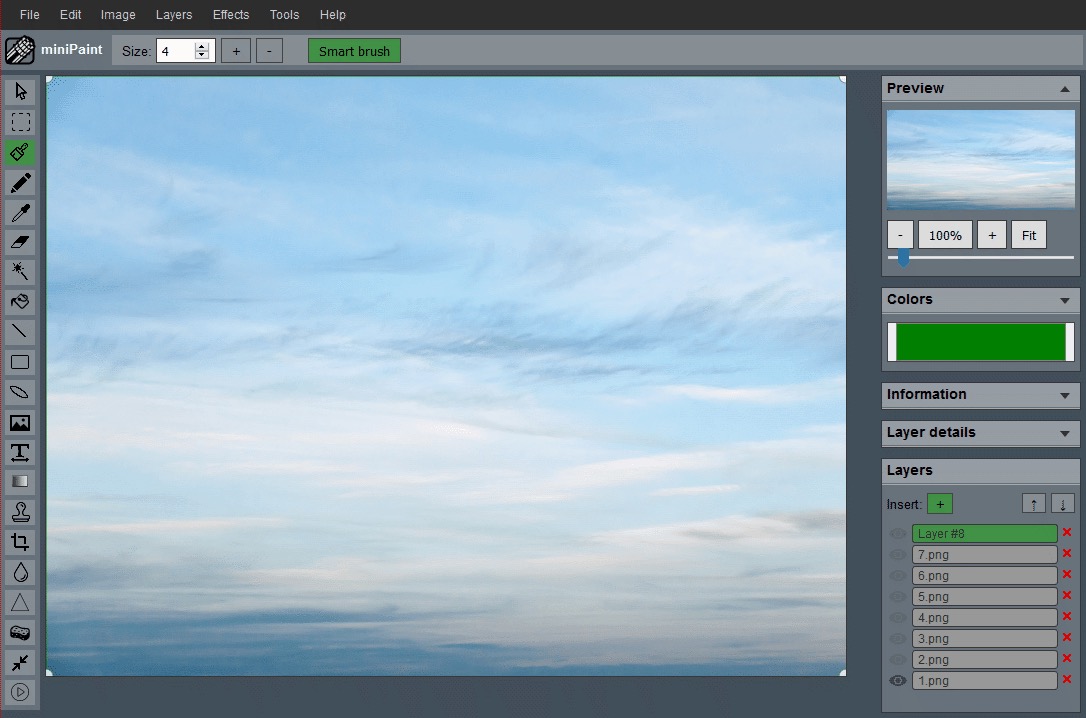
File size is usually a pixel problem first
A large image file often contains more pixels than the upload destination needs. A phone or camera photo may be far larger than a website form, product listing, profile image, or blog card will ever display. Before looking for aggressive compression, check whether the image dimensions are simply too large.
If a platform only displays the image as a small card, uploading the original full-size file does not add visible value. It only makes the upload heavier. The safest first step is to resize from a clean source into a version that fits the actual use.
Check the upload requirement before editing
Different upload forms care about different limits. Some limit file size, some limit pixel dimensions, and some limit file type. Check the requirement before changing the image. If the form says the file must be under a certain megabyte size, resizing dimensions may help. If it requires a specific width and height, crop and resize to that frame instead of guessing.
This prevents unnecessary quality loss. You may not need to shrink the image dramatically if the real issue is only an unsupported file type or an oversized canvas. A precise adjustment usually looks better than repeated trial-and-error compression.
Crop unused space before resizing
Empty borders, extra background, and unused margins add weight. Cropping them away can reduce the number of pixels before you even resize. It can also make the subject easier to see in the final upload.
Use the Crop Image workflow if the image has too much blank space around the subject. For product images, keep consistent padding but remove unnecessary empty areas. For profile images, crop to the subject first and then resize the final frame.
Resize to the upload destination
After the frame is correct, use the Resize Image workflow. The target dimensions should come from the place where the image will be used. A website hero, small thumbnail, form attachment, and marketplace listing do not need the same export.
Avoid resizing the same file over and over. Keep the original master and create named upload versions from it. If one upload fails because the file is still too large, go back to the master and create a slightly smaller version rather than repeatedly compressing the same reduced file.
Choose the format after the image is prepared
Format matters, but it should not be the only step. PNG is useful for transparency, logos, icons, and crisp graphics. JPG is often useful for rectangular photos with no transparent areas. If you choose JPG for a transparent cutout, the transparent background will disappear.
When transparency matters, keep PNG even if it is larger. When the image is a standard photo, a photo-friendly export may reduce weight while keeping the visual result acceptable. The guide on PNG vs JPG can help with that choice.
Do not reduce so much that the image stops working
The goal is not the smallest possible file. The goal is the smallest practical file that still does its job. If packaging text becomes unreadable, a product edge looks muddy, or a face loses important detail, the export may be too small.
Preview the image at the size where it will be seen. This is especially important for listings, ID-style uploads, forms, and screenshots. A smaller file that causes rejection or confusion is not a good optimization.
Keep separate versions for different upload jobs
A single image may need several upload-ready versions. A profile photo, product image, blog image, and support-form attachment all have different needs. Name the exports clearly so you do not accidentally upload the source file or reuse a version that was made too small for a different purpose.
Simple names such as product-main-upload, product-thumb-upload, or profile-square-small make the folder easier to manage. This is boring housekeeping, but it prevents mistakes when you are preparing many images at once.
Pre-upload checklist
- Keep the original master file.
- Crop away unused or distracting space.
- Resize to the real upload destination.
- Choose PNG for transparency or crisp graphics.
- Preview the result before uploading.
If you are preparing images for a website rather than a one-time upload, read optimize images for website speed. If the files are product photos, the guide on resizing product images for listings gives a more specific workflow.
Related guides and next steps
Upload preparation changes depending on whether the image is for email, a website, or a product listing.